Trigger Actions (IA)
Trigger Actions monitor ServiceNow for records that match specific rules and automatically run an AI analysis when matching records are detected. AI analysis results are delivered to destinations you choose, keeping the right people in the loop at all times.
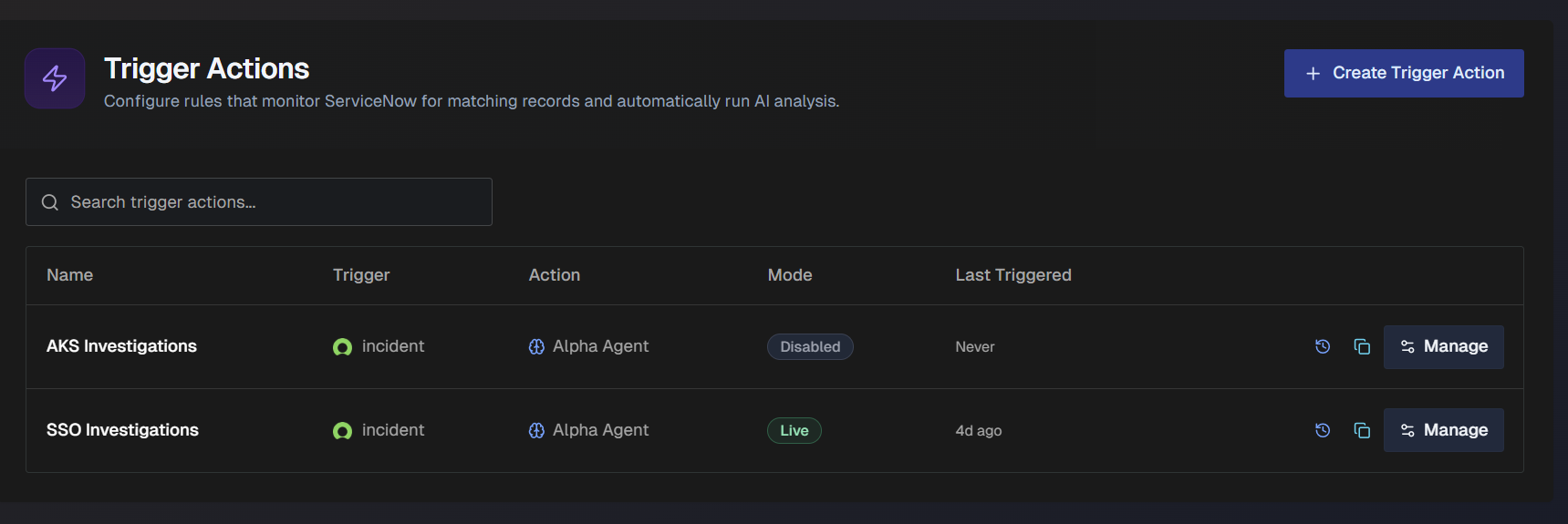
The following information about each trigger action appears in the list:
Trigger name
ServiceNow table queried
Action type
Mode
Last time AI was triggered.
Use the Search bar to find a specific trigger action in the list.
Select the Clone icon to create a copy of a trigger.
Select Manage to edit a trigger.
Create a Trigger Action
To create a trigger action:
In the upper right corner, click + Create Trigger Action.
On the trigger action editor page, enter the trigger information and criteria. In the Create Trigger Action section, populate the following information:
Name - descriptive name for the trigger action.
Description - optional description of what the trigger action does.
In the Mode section, select the mode the trigger action should be in after creation. Choose from the following options:
Live - actively monitoring and delivering analysis results.
Dry Run - actively monitoring, but does not post results.
Disabled - action does not monitor or post results.
In the ServiceNow Trigger section, determine which records trigger the automation. Configure the following fields:
Field
Description
Table
Select a ServiceNow table to query. Scroll through the list for a table or use the search bar to find a specific table.
Filter Conditions
Add a filter for which records should be selected.
Select + Add Condition to add a condtion. Choose the Field, Operator, and Value to create the condition. You can create multiple conditions.
Select Add Group to add a group of conditions. You can adjust the root-level operator between conditions or groups to AND or OR.
The Generated Query appears below the conditions.
(Optional) Click Validate to test the condition.
Polling Interval
Select the polling interval. Choose 5 minutes, 10 minutes, 15 minutes, or 30 minutes.
(Optional) In the Conditional Prompt section, use AI to filter records before running the full analysis. Toggle on Use Conditional Prompt and enter the evaluation AI should perform before running the analysis.
The triggering record will be evaluated against this prompt. If it does not match, the analysis will be skipped.
In the Loop Prevention section, choose how often the same record can be reanalyzed. Select from the following options:
Once per record - each record is analyzed once.
Re-process after interval - reanalyze records after a cooldown period.
If you select this option, choose the Cooldown Interval. Select between 30 minutes, 1 hour, 4 hours, 12 hours, or 24 hours.
In the Action section, configure the instructions for analyzing triggered records.
In the System Prompt field, describe how the agent should analyze the records. Manually enter a prompt, or click Use Template to select from preconfigured prompts. The following options are available:
Incident Triage - Analyze the incident, assess severity, identify the likely cause, and suggest next steps.
Root Cause Analysis - Analyze the incident, correlate with recent changes and alerts, and identify root cause.
Priority Assessment - Evaluate the incident against business impact criteria and recommend a priority level.
Knowledge Search - Search the knowledge base for relevant articles and past resolutions.
Escalation Recommendation - Analyze the incident and recommend whether escalation is needed and to which team.
User-Facing Response - Generate a clear, structured response for internal business and technical stakeholders.
In the Output Gate section, choose when analysis results should be delivered. Select from the following options:
Always post - Deliver outputs for every analysis.
Skip if not actionable - Check for actionable content before posting.
Custom criteria – Define your own posting criteria in the Posting Criteria field. The analysis will be evaluated against these criteria. If it does not match, outputs will not be delivered.
In the Outputs section, choose where and how to deliver the analysis results. Configure the following information:
Field
Description
Output Preamble
Prefix added to ServiceNow outputs to identify AI-generated content.
Formatting Instructions
Optional instructions that guide how the analysis is formatted for all output destinations.
Work Note
Enable this option to post an internal work note to the ticket.
Optionally, you can configure Advanced formatting options to update the Banner Title, Include header, Include footer, or override the global formatting instructions.
Comment
Enable this option to post customer-visible comment to the ticket.
Optionally, you can configure Advanced formatting options to update the Badge Text, Include header, Include footer, or override the global formatting instructions.
Email
Enable this option to send results via email. If you enable this option, enter one or more email addresses, comma separated.
Optionally, you can configure Advanced formatting options to Include header, Include footer, or override the global formatting instructions.
Slack Channel
Enable this option to post the analysis to a Slack channel. If you enable this option, select one or more channels from the drop-down menu.
Optionally, you can configure Advanced formatting options to Include header, Include footer, or override the global formatting instructions.
Slack DM
Enable this option to send a direct message of the analysis to the person who created the rule.
(Optional) Click Test Now to test the execution.
Click Save Changes to save the trigger action.